








I’ve lost count of how many times someone has handed me a laptop, sighed, and said, “It’s just so slow now.” And almost every time, the fix was simpler than they thought. No magic software, no expensive repairs. Just a bit of methodical, step-by-step care.
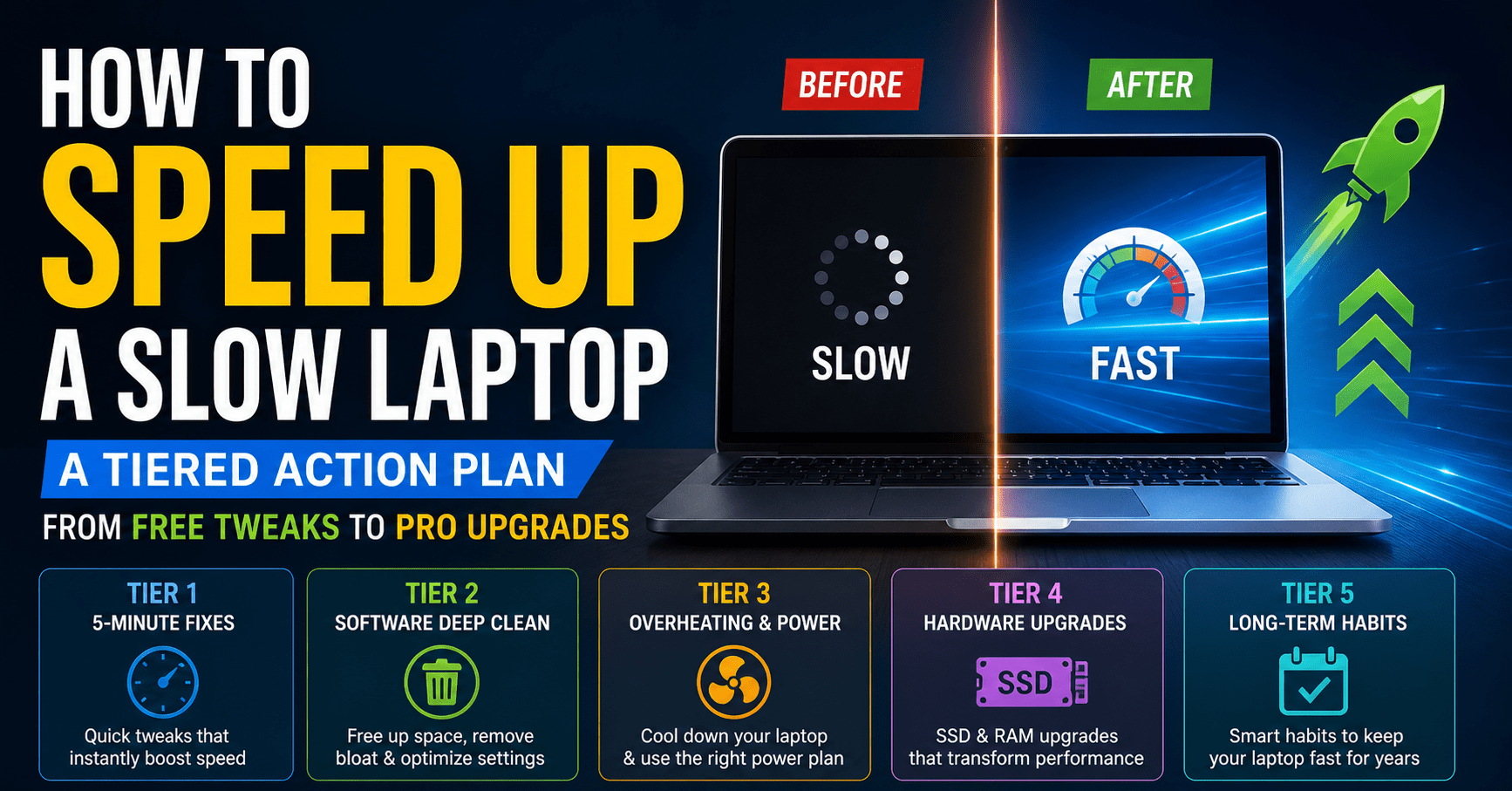
This guide is exactly what I’d do if you were sitting across from me, frustrated with a sluggish machine. I’ll walk you through a tiered plan—start with the things that take seconds and cost nothing, then move to deeper stuff only if you need it. By the end, your laptop should feel a whole lot more like the day you got it.
Quick Diagnostic Check (Is Your Laptop Suddenly, New, Old, or Gaming Slow?)
Before we change a single setting, let’s figure out what kind of “slow” you actually have. This quick check points you straight to the right fix:
- Suddenly slow? Probably a bad update, some malware, or a background task that’s gotten stuck.
- Brand new laptop slow? Usually it’s pre-installed bloatware and power settings that keep the CPU throttled.
- Old laptop painfully slow? You’re almost certainly fighting an aging hard drive and not enough RAM.
- Slow only while gaming? Overheating and graphics tweaks are your main suspects.
Once you recognize your situation, just jump to the corresponding tier. That alone saves a ton of time.
Tier 1: 5-Minute ‘No-Brainers’ That Instantly Boost Speed
Fix 1: The One Restart Rule
It might feel too easy to be true, but a proper restart clears out temporary files, stuck processes, and memory leaks that pile up when your laptop stays on for days. If you’re googling “why is my laptop so slow all of a sudden,” a restart is the very first thing to try. Shut down completely, wait ten seconds, then power back on. I’ve seen machines go from sluggish to snappy just from this alone.
Fix 2: Disable Startup Programs the Right Way
Startup programs are the silent thieves of your laptop’s speed. Hit Ctrl+Shift+Esc, click the Startup tab, and look for anything you don’t actually need launching at boot—cloud sync utilities, chat apps, helper tools. Disabling them can slice boot time by 20–40 seconds. Just leave your antivirus alone. It’s a tiny change with a surprisingly large impact.
Fix 3: Close the Tab Hoard
I know, I do it too. Those 25 browser tabs feel harmless, but each one is eating a chunk of RAM. If you’re on Chrome, right-click its title bar and open the browser’s own Task Manager—you’ll see exactly how much memory those “idle” tabs are taking. Bookmark what you really need, then close the rest. Your laptop will breathe easier immediately.
Tier 2: The Complete Free Software Deep Clean
Free Up a Choked Hard Drive (With a Tool Comparison)
A nearly full drive can make everything crawl. Aim to keep 15–20% free. Start with Disk Cleanup (search for it, pick your C: drive, clean temp files). For automatic maintenance, turn on Storage Sense in Windows Settings. Some people like using trusted third-party tools like CCleaner for a deeper sweep—just be cautious with the settings. No matter which route you pick, clearing that digital clutter brings back real responsiveness.
Uninstall Bloatware and Programs You Don’t Use
That shiny new laptop often comes loaded with games you didn’t ask for, trial software, and manufacturer utilities that sit in the background doing nothing useful. Head to Settings > Apps > Installed Apps, sort by size or “last used,” and remove what you don’t recognize or genuinely need. Fewer background processes mean a laptop that feels faster even when idle.
Stop Resource-Hungry Processes (Visual Walkthrough)
Open Task Manager again, go to the Processes tab, and sort by Memory or CPU. You’ll likely spot a browser eating a gig of RAM, a forgotten photo editor, or a sync tool hogging disk. Right-click and end those non-essential tasks. I always suggest taking a quick screenshot before you clean up—seeing the before-and-after makes the improvement crystal clear.
Run a Full Malware Scan (Offline for Safety)
A sudden slowdown after an update can sometimes be malware, not the update itself. Windows Security has a great offline scan that reboots your PC and checks for deep-rooted threats before the system fully loads. It takes about 15 minutes and often catches rootkits that regular scans miss. Do this once a month and you’ll rule out a lot of mystery sluggishness.
Turn Off Visual Effects for an Instant Responsiveness Gain
Fancy animations, transparency, and shadows look slick, but they’re constantly taxing your CPU and GPU—especially on older laptops. Type “View advanced system settings,” open Performance Settings, and choose “Adjust for best performance.” The eye candy disappears, but your laptop will feel noticeably snappier. You can always re-enable one or two effects you really like later.
Fix a Laptop Slow After an Update
A big Windows feature update can reset your power plan, re-enable visual effects, or trigger background indexing that runs for hours. If things feel off right after an update, check for pending restarts, pause any backup sync, and let Search Indexing complete. Reapply your preferred power plan. In most cases, the slowness settles within a few hours. If it doesn’t, roll back recent driver updates or run the System File Checker.
Tier 3: Overheating, Power & Critical Maintenance
Check Your Power Plan & Stop the Saver Trap
Windows power saver mode clamps down on CPU performance to stretch battery life, and it’s a huge reason some brand new laptops feel sluggish right out of the box. Switch to “Balanced” or “High performance” in Power Options. For even more control, set the minimum processor state to 100% when plugged in. This one tweak often fixes that unexplained, frustrating lag on otherwise capable laptops.
The Overheating Fix: Clean Dust from Vents & Fans
Laptops are designed to throttle down when they get too hot, protecting themselves from damage. If yours feels like a space heater and sounds like a jet engine, dust is probably clogging the heatsink. Power it off, unplug everything, and use short bursts of compressed air into the intake vents. This simple cleaning is one of the most overlooked free speed-up tips—especially if you play games or use your laptop on soft surfaces.
Tier 4: Worth-It Hardware Upgrades That Transform Performance
Upgrade 1: Swap Your Old HDD for an SSD
If you take away one single piece of advice from me, let it be this: moving from an old mechanical hard drive to a solid-state drive is the single most dramatic speed improvement you can make. Boot times shrink from minutes to seconds, apps launch almost instantly, and even a 5‑year‑old laptop can feel new again. Just make sure you get the right type—SATA or NVMe—for your specific model.
Upgrade 2: Add More RAM if You’re Running on Fumes
With Zoom, a dozen browser tabs, and Office all fighting for memory, 4GB or even 8GB of RAM can vanish fast. Open Task Manager; if memory usage is consistently above 80%, a RAM upgrade will smooth out multitasking like you wouldn’t believe. It’s affordable and often easier than you think—check whether your laptop’s RAM is soldered or upgradeable first.
Crucial Pre-Upgrade Checklist: Find the Right Parts
Please don’t guess. Use a system scanner tool or look up your exact laptop model’s service manual to see whether you need a 2.5-inch SATA SSD or an M.2 NVMe drive, and the right RAM speed and form factor (DDR4, DDR5, etc.). Getting that right avoids returns and ensures the upgrade actually fits. A few minutes of homework makes your DIY project go from stressful to satisfying.
Tier 5: Long-Term Habits & Myths That Don’t Help
Common Myths That Don’t Speed Up Your PC (And Can Hurt)
- Registry cleaners: They promise miracles but can delete important keys and destabilize Windows.
- RAM booster utilities: They flush memory artificially, making apps reload and actually feel slower.
- Defragmenting an SSD: Not only unnecessary, it shortens the drive’s life. Windows optimizes SSDs automatically.
Stick with the evidence-based methods in this guide. The one-click magic fixes often create more problems than they solve.
Your Monthly 10-Minute Laptop Health Checklist
Set a calendar reminder and spend ten minutes each month doing this: full restart, Disk Cleanup, a quick check of startup programs, a malware scan, and a visual inspection of the vents for dust. It’s the digital equivalent of changing your car’s oil—small effort, huge payoff in preventing performance decay and extending your laptop’s useful life.
When to Admit It’s Time for a New Laptop
If you’ve followed every tier, cleaned the dust, upgraded to an SSD, maxed out the RAM, and your laptop still struggles with basic web browsing, it may have simply reached the end of its road. Look for constant 100% disk usage, an unsupported operating system, or a swollen battery. In those cases, investing in a modern budget laptop is often the smartest path forward.
FAQs
Why is my laptop so slow all of a sudden?
It usually comes down to something recent: a Windows update, a newly installed program, malware, or background indexing. Restart first—that clears temporary glitches. Then check for pending updates, run a quick malware scan, and peek at Task Manager. Often it’s just a one-time background task that finishes on its own.
How do I clean my laptop to make it run faster?
Two areas: software and physical. Use Disk Cleanup or Storage Sense to wipe temp files and free up space, then uninstall bloatware. For hardware, power off, unplug, and gently blow compressed air through the vents to clear dust that causes overheating. Doing both regularly keeps your system light and cool.
Does more RAM speed up my laptop?
Yes, especially if you multitask. When RAM fills up, Windows uses the hard drive as virtual memory, which is much slower. Upgrading from 4GB to 8GB or 16GB reduces that bottleneck dramatically. But if you already have 16GB and only browse the web, you might not see a huge change.
Can a full hard drive slow down a laptop?
Absolutely. When a drive is more than 85–90% full, it has less space for temporary operations, which directly slows performance. Keeping at least 15–20% free is a healthy rule of thumb. Free up disk space by deleting large unused files and running Disk Cleanup.
How do I check for malware on my laptop?
Open Windows Security, go to “Virus & threat protection,” and choose “Full scan” for a thorough check. For deep-hidden threats, use the Microsoft Defender Offline scan—it reboots your PC and inspects the system before Windows loads, catching rootkits that hide during normal operation. Run a scan at least monthly.
How to speed up an old laptop for free?
Stack free software fixes: disable startup programs, uninstall bloatware, run Disk Cleanup, scan for malware, switch to “High performance” power plan, and turn off visual effects. If it’s overheating, clean the vents. These tweaks combined can breathe surprising life into an aging machine without spending a dime.
How to make Windows 11 run faster?
Disable transparency and animation effects under Settings > Accessibility > Visual Effects. Turn off background apps you don’t need, keep Windows updated with the latest patches, and regularly use Disk Cleanup and Storage Sense. Unpinning unused apps from the taskbar also reduces interface overhead significantly.
Conclusion:
A slow laptop doesn’t have to be permanent. Start with the diagnostic check to pinpoint your scenario, then work through the tiers: restart and tame startup programs, perform a deep software clean, manage overheating, and only then consider the SSD and RAM upgrades that change everything. The blueprint is in your hands—choose the path that fits your situation and take back the fast, frustration-free computing you deserve. Ready to start? Begin with Tier 1 right now.